Tips on how to create multilingual courses with MyCourses
Multilingual teaching and learning has been a topic of reflection at Aalto for a while, and significant effort has been made to find suitable solutions for its implementation. The concrete requirements of multilingualism at the course level are being delineated at the different schools, but tools are already available to support the creation and display of multilingual course content.
In addition to AI-powered tools for creating and translating content, MyCourses has been integrating features that aim to support multilingual course workspaces. While using these features is straightforward and easy to integrate into a course, their implementation requires planning to ensure that students benefit from them. When a course offers multilingual options for the first time via MyCourses, it might be worth reflecting on:
- How students are informed about the course’s ground rules, incl. language practices (e.g. via course general section, Announcements forum, course’s first contact session, etc)
- The course’s core content availability in different languages (e.g. via Sections, Article Folders, Book activity, etc)
- Possibility to complete the course’s required work in different languages (e.g. via Assignment and Quiz)
In this post, we will focus on two of MyCourses features: the mlang button/filter and the Restrict access per profile language option, and how they can be utilized in the course’s communications, assessments, and resource sharing.
Mlang
The mlang button simplifies the use of the mlang filter, allowing you to create language versions of a text within the same activity/section/etc. In practice, the text is written on the MyCourses text editor as:
- {mlang fi} sisältöä suomeksi {mlang}
- {mlang en} content in English {mlang}
- {mlang sv} innehåll på Svenska {mlang}
- {mlang other} content for other languages {mlang}
Once saved, the text is displayed in the language corresponding to the user’s MyCourses language preference. Note that when writing content in only English and Finnish, you should use {mlang other}{mlang} and {mlang fi}{mlang} to display English text to students using MC in Swedish. Using mlang en & fi filters will leave description fields empty for Swedish language profiles.
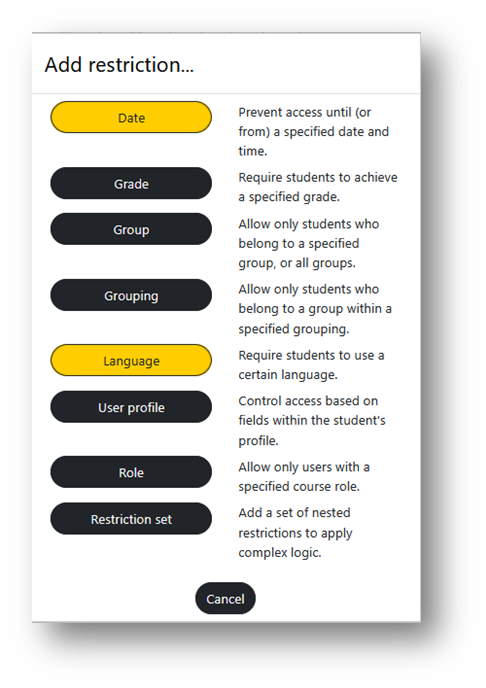
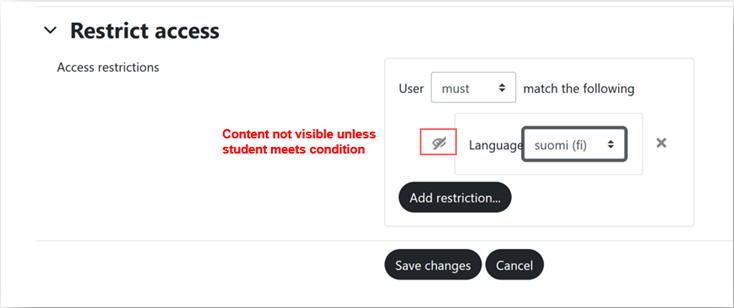
Restrict access per profile language
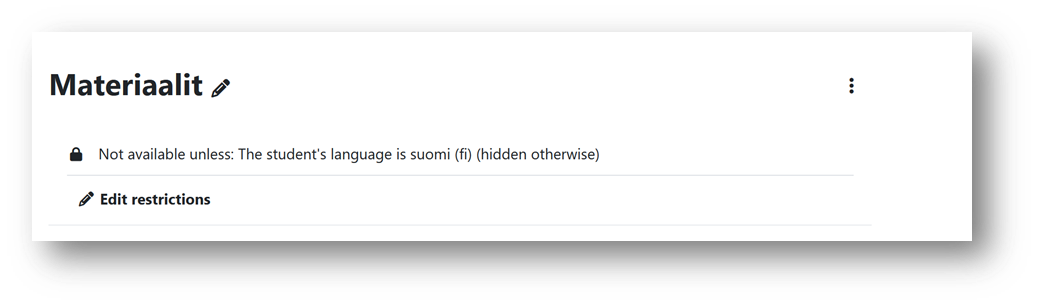
Restrict access per profile language is a way to show certain contents only when the user has selected a specific language in their MyCourses preferences. This is a flexible method as students can switch their profile languages back and forth.
Course communications
The General section is a good place to state a course’s language policy, using the mlang filter.
You can create the link to other languages by copying a page url and adding &lang=FI or &lang=EN , and linking the language versions, as seen in the example below:
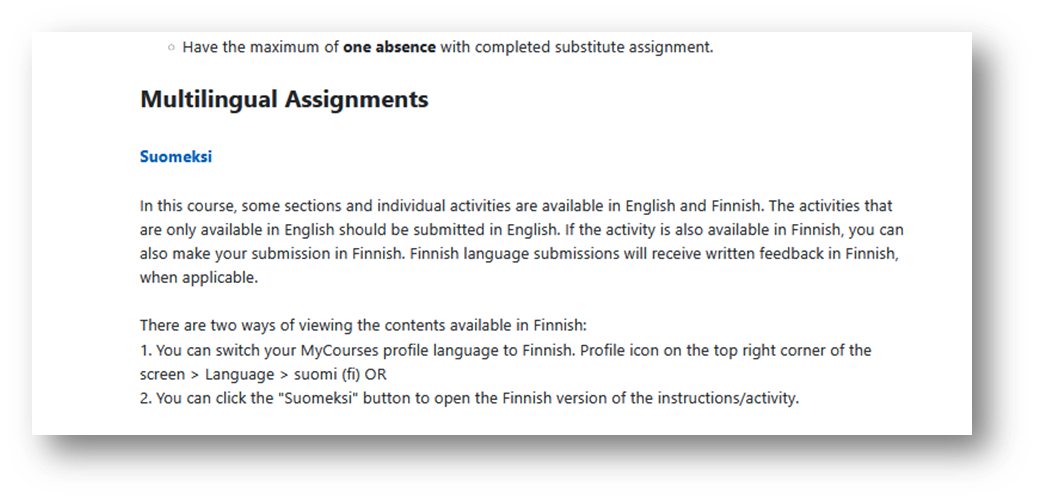
- Example from a course where students were allowed to submit individual assignments in English or Finnish.
The first teaching session is a moment to restate how should students proceed; for instance, how does multilingualism apply to assessment in the course and how to view language versions on MyCourses.
When using the Announcements forum, pay attention to the fact that forum subscription sends emails and the mfilter might not render correctly in the email text. In this case, it might be best to write the messages in the two/three languages used in the course without using the mlang filter.
Assessment
Assignment
In courses where only a few activities are available in more than one language, it is useful to link the language version to the activity description to remind students of the possibility.
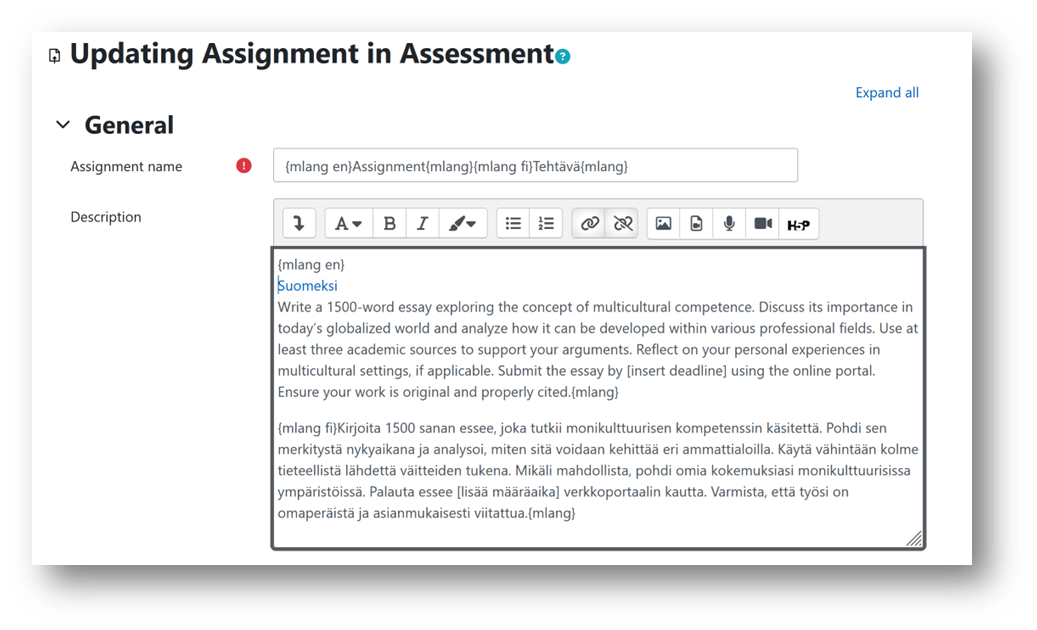
It might be important to require students to add a language identification in the file title for easier differentiation by graders, if e.g. a Swedish speaking TA will assess submissions in Swedish.
The Assignment’s assessment rubrics can only be created in one language. When using rubrics in a multilingual assignment, the teacher can give additional feedback in other languages, as needed.
Quiz
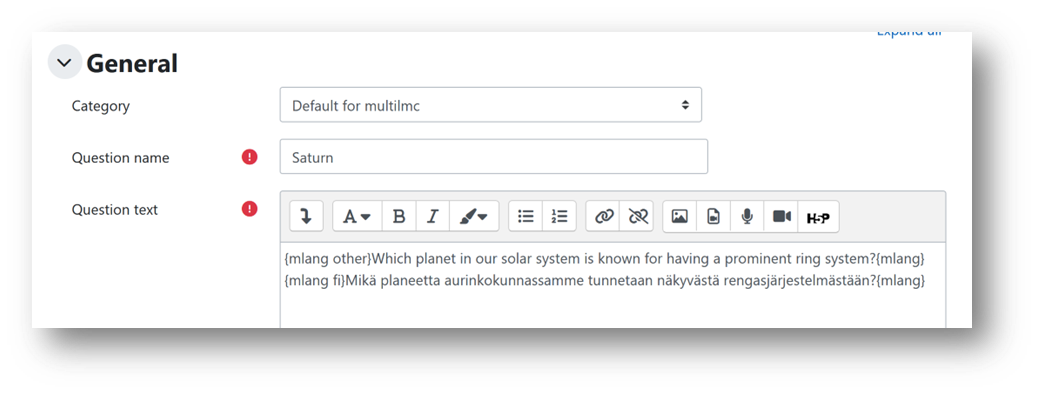
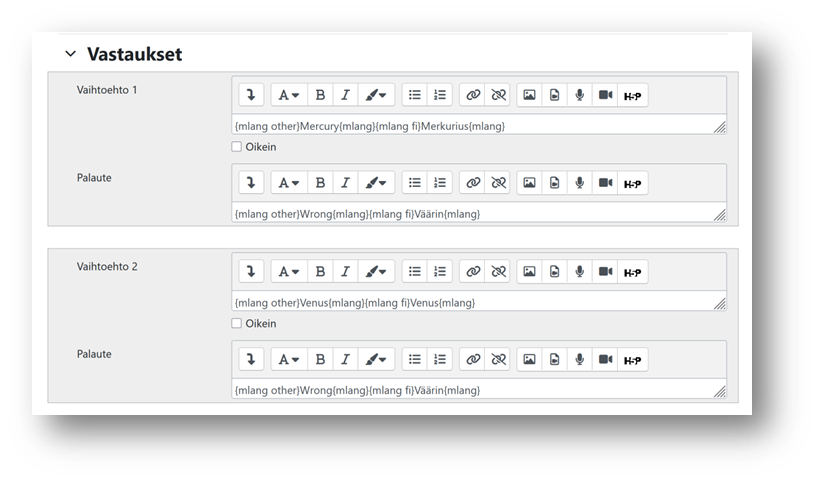
Mlang works well with most text question types, but some question types might not render the filter correctly – e.g. Drap and drop has a known issue & Mathematical questions must be tested. In most cases, the mlang filter must be added to Question text, Answer options & Feedback fields. You should avoid pressing Enter between mlang filter lines to ensure that the text will not contain extra spaces in the student view.
Resources
When providing different files per language, e.g. Finnish articles are different from English articles, you can create separated folders or sections and apply restriction based on profile language.
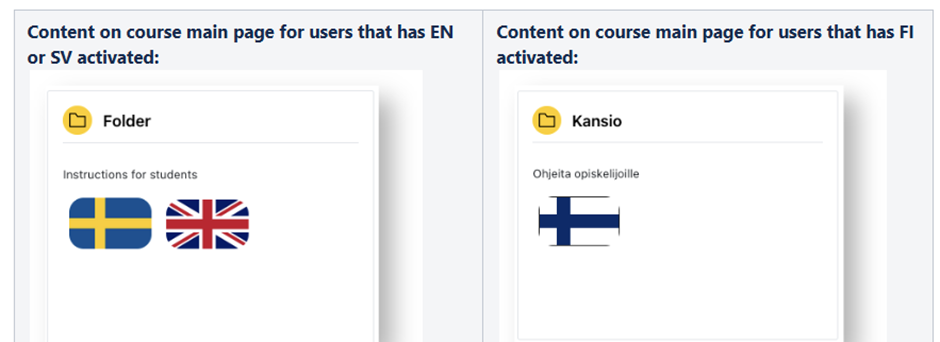
When you use the restrict access per language, you are creating separate sections/folders, so the mlang filter is not needed, i.e. only Finnish text for students with Finnish language profiles and so on.
When sharing content via Book or Page type resources, the mlang filter can be used.