Meet the new Turnitin submission box
You may have noticed the news article about the new Turnitin interface that was deployed on 27 October 2025. The submission box with the new interface, called Turnitin LTI 1.3*, is available via MyCourses’s activity chooser (remember to turn on the edit mode to access the chooser). Go ahead, give it a try.
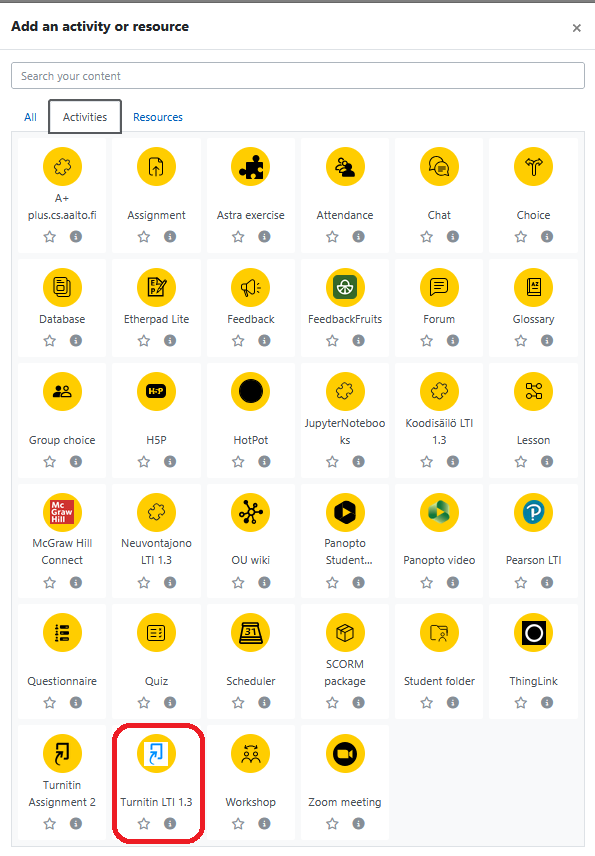
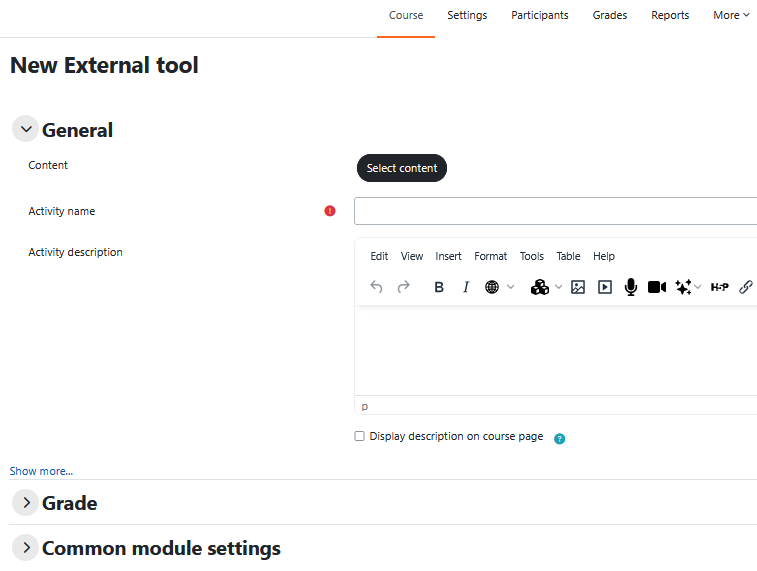
On picking this activity, instead of providing the required settings information in the familiar MyCourses settings view, click on the Select content button to do so. (Users of Feedback Fruits will be familiar with this approach to provide the required settings.) Click on the Optional settings button to open all the familiar Turnitin submission box settings. This change in setting up the submission box is the biggest change in the use of the submission box for teachers.
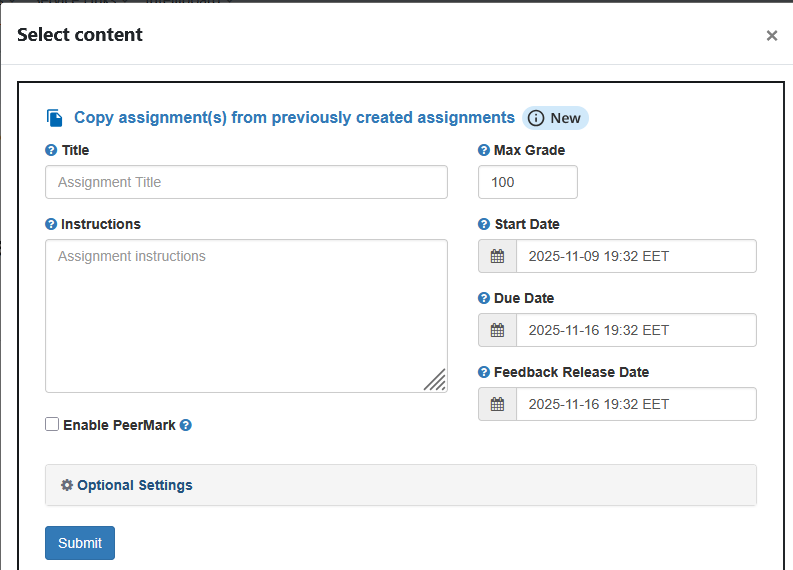
It has all the functionalities that the old interface has and a couple of new features too: you can store the submission box setting that you use most often so that you can use it as the basis when creating new submission boxes, and you can provide a template that is excluded when looking for similarities in students’ submissions. Explore these features.
You will find instructions on the use of this new submission box on the MyCourses help pages for Turnitin.
* Tech-savvy readers will know that LTI refers to Learning Tools Interoperability, a standard developed to integrate learning management systems like Moodle (MyCourses) with external tools such as Feedback Fruits and Turnitin. The current version of this standard is 1.3. Until now, Turnitin was ‘attached’ to Moodle only as a plugin, meaning that the Turnitin functionalities were add-ons to Moodle as extra features. The difference between these two ways of attaching external systems to the learning management system is how data is exchanged between the two.